Picture a two-day conference with three tracks running at the same time in three rooms, plus one hands-on workshop capped at twenty seats. Registration opens. Within the first hour, someone picks a Track A talk and a Track B talk that happen to run at the exact same time. Someone else signs up for the twenty-seat workshop as the twenty-third person in line. A third person, holding a general admission ticket, somehow ends up on the roster for a talk that was supposed to be VIP-only.
None of that is a hypothetical — it’s what happens by default on most event registration software, because most platforms treat “pick what you want to attend” as a simple checkbox list and stop there. The enforcement — the part that actually keeps the agenda sane — gets left for someone on the event team to catch later, usually by scanning a report after registration closes.
Session selection and Session Rules, part of Blackthorn Events’ August 2026 release, move all three of those catches to the moment of registration. Here’s what that actually looks like, walked through as an attendee would experience it.
The moment they pick a ticket type: limits are already set
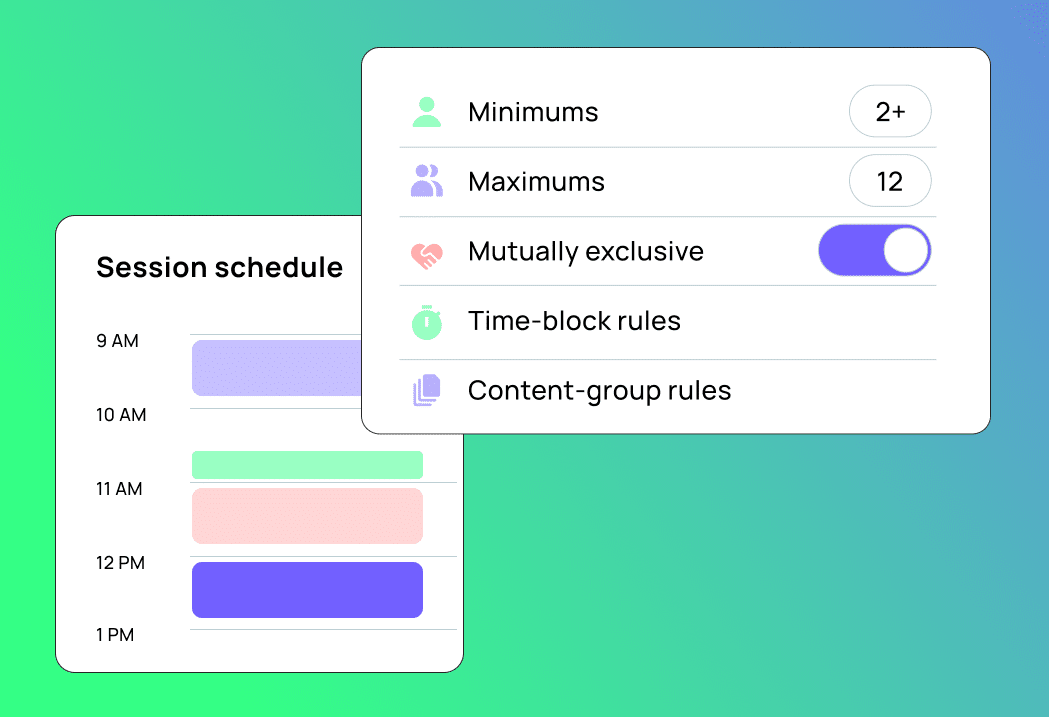
Before an attendee ever sees the agenda, their ticket type has already defined the boundaries. A VIP ticket might require a minimum of three sessions; a single-day pass might cap out at one. These per-ticket minimums and maximums are configured once, per Event Item, in Event Builder — and checkout simply won’t complete until the attendee’s picks fall inside them. There’s no separate step where someone reviews who registered for too few or too many after the fact, because the system doesn’t allow it to happen in the first place.
The moment two time slots overlap: Time Block rules step in
This is the double-booking problem. Anything scheduled for the same time gets grouped into a Time Block, and the rule attached to that block allows exactly one pick from the group. The attendee never sees both overlapping options as independently selectable — choosing one in the group is what removes the others from consideration. No cross-checking a schedule grid after the fact, because the conflict was never available to create.
The moment tracks need to stay organized: Content Group rules do the sorting
Time doesn’t explain every constraint. A “leadership” track and a “technical” track might run at different times, but you still want attendees choosing coherently within a track rather than bouncing between unrelated ones. Content Group rules group items by topic or theme, and let you control how selection works inside that group — separate from whatever’s happening with time.
The moment something should be non-negotiable: Required Sessions handle it
Some things aren’t optional for a given ticket type — a mandatory keynote, an orientation block, a compliance briefing. Mark it as required and it’s added automatically to that ticket type’s registration. An attendee can’t quietly remove it without removing the ticket itself.
The moment a room fills up: capacity and waitlists take over
Each item on the agenda carries its own available quantity, tracked independently of overall event capacity. Once a twenty-seat workshop reaches twenty, registration for it simply stops — the twenty-third attempt is what gets caught, not discovered after the room is already over capacity on the day. Turn on a waitlist for that workshop and the next person in line lands in “Waitlisted – Pending” status instead of being turned away outright.
| Rule type | What it prevents | Where you set it |
| Per-ticket min/max | Registrations with too few or too many picks for that ticket type | Event Builder, per ticket type |
| Time Block rules | Double-booking two things scheduled at once | Event Builder, grouped by time |
| Content Group rules | Disorganized selection across a track or theme | Event Builder, grouped by topic |
| Required Sessions | A mandatory item getting skipped or removed | Settings, per ticket type |
| Capacity + waitlist | Overselling past a room or seat limit | Settings, quantity + waitlist toggle |
Why this lives in Blackthorn Event Builder, not a separate scheduling tool
All five of the above are configured in the same place you’re already building the rest of the event — no separate scheduling add-on, no spreadsheet tracking who picked what against who’s allowed to pick it. And because Session Rules runs natively on Salesforce, every choice an attendee makes is written directly to the same connected record your team already reports from. There’s no exporting registration data at the end of the event to check it against your CRM — it was never anywhere else to begin with.
Want to see how Session Rules work? Book a demo.
Quick answers about the new product
Does a Time Block rule work the same way as a Content Group rule? No, Time Block groups items happening at the same time and allows one pick to prevent overlap. A Content Group groups items by theme or track regardless of timing, and controls selection within that theme.
Can two ticket types have completely different rules for the same event? Yes. Minimums, maximums, and required items are all set per Event Item, so a VIP ticket and a general admission ticket for the same event can follow entirely different rules.
What does an attendee see once something is full? If a waitlist is enabled, they’re marked “Waitlisted – Pending” instead of being blocked outright. Without a waitlist, that item simply stops accepting new registrations once it’s full.
Is this a separate step from registration, or part of it? Part of it. An attendee makes these picks as one step in the same checkout, and can’t complete registration with a choice that breaks a minimum, maximum, Time Block, or Content Group rule.
Ready to streamline your event planning and attendee management?
See how Blackthorn Events helps you run in-person, virtual, and hybrid events directly in Salesforce.